Intermediate Vocabulary
Meet trickier everyday words and work out which one fits two different sentences at once.
Who is this for?
This tool is for anyone who already knows the simple everyday words and is ready for something a bit chewier.
Here you don't just learn what a word means — you work out which word fits two sentences at the same time, which is how you learn the little differences between words that look similar. If you enjoy a good puzzle, you'll like this one.
What will you learn?
Intermediate Vocabulary is built like a game of detective work. Here's what you get to do:
- Read two sentences and find the one word that fits both of them.
- See a clear explanation of why your answer worked — or why it didn't.
- Work through batches of questions on themes like daily life, travel and describing things.
Take your time on each one. The explanations are the real lesson here, so it's worth reading them even when you get the answer right.
How to use it — step by step
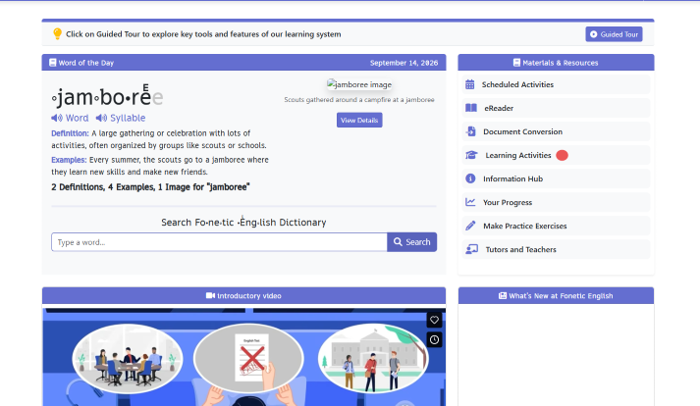
Step 1 — Find Learning Activities
When you open the app, look at the list on the right called Materials & Resources. It works like a menu in a restaurant — every line is something you can do. Click Learning Activities.
Step 2 — Click “Intermediate Vocabulary”
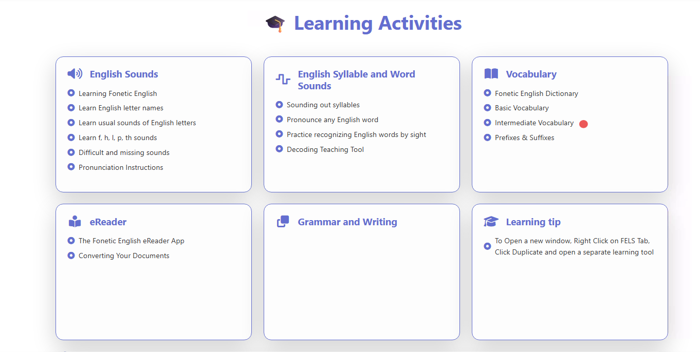
A page full of cards appears. Find the card called Vocabulary and click Intermediate Vocabulary underneath it. “Intermediate” just means the middle step — harder than the basics, but not the hardest.
Step 3 — Choose your level and a batch
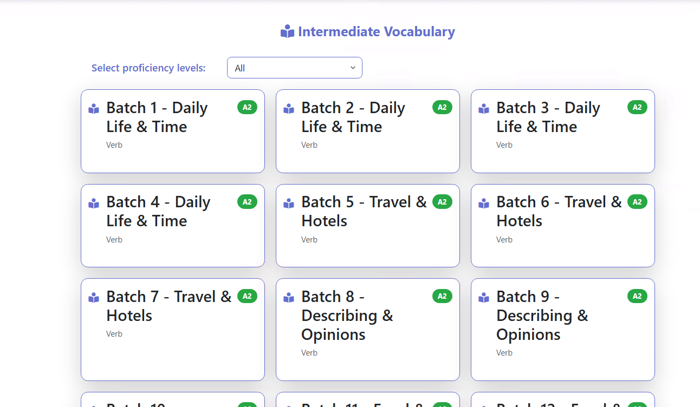
At the top there's a dropdown for your proficiency level; leave it on All if you're not sure. Underneath are batches of questions, each with a theme like Daily Life & Time or Travel & Hotels. Click whichever batch you fancy starting with.
Step 4 — Read both sentences, then choose
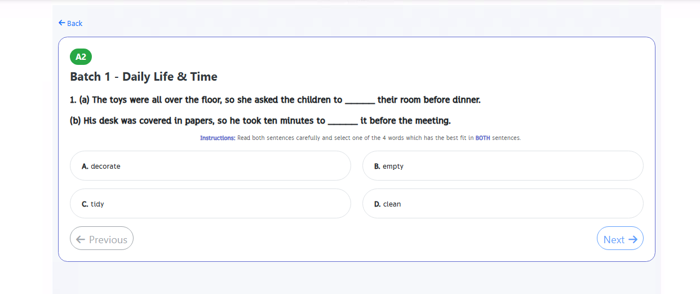
You'll see a question with two sentences, marked (a) and (b), and four words to choose from. Your job is to find the single word that fits into both gaps — not just one of them. Read both sentences carefully before you click, because a word that fits the first one often doesn't fit the second.
Step 5 — Picked the wrong one? No problem
A wrong answer turns red with a little cross, and a red box appears explaining what that word actually means. It shows you both sentences again so you can see why it didn't fit, then says TRY AGAIN. You get another go, so nothing is lost.
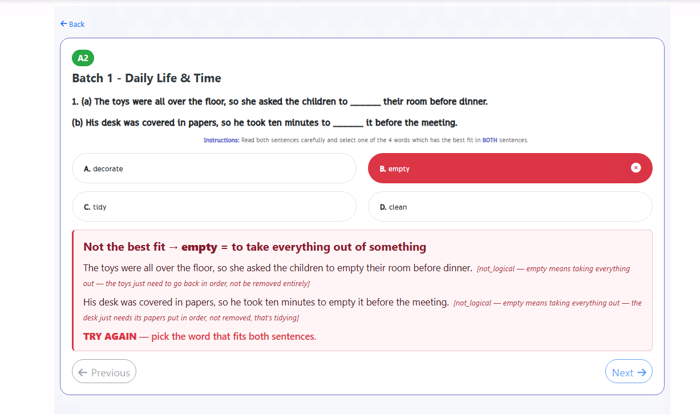
Step 6 — Yay, you got it right!
The correct answer turns green with a tick, and a green box tells you why it's the best fit. Underneath, the app even explains why the other three were close but not quite right, plus a little extra note about the word family. It's worth a read — that's four words learned instead of one.
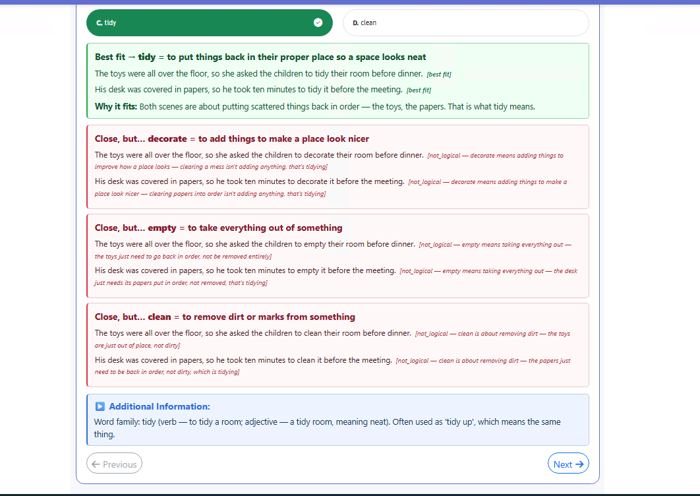
Step 7 — Click Next for the next question
The Next button sits in the bottom right corner. Click it and a fresh pair of sentences appears. If you'd like to look at an earlier question again, Previous takes you back.
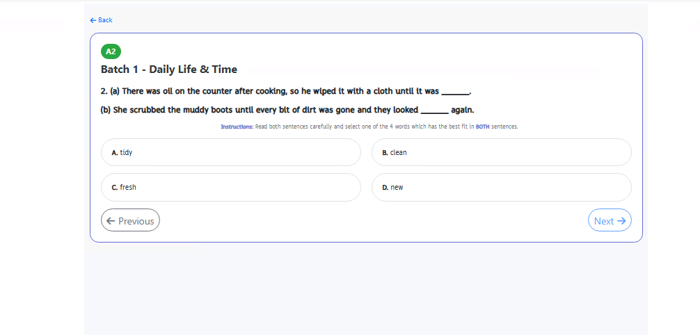
Step 8 — Click Finish when you reach the end
On the last question, the Next button turns into a green Finish button. Click it to close the batch and go back. Then pick another batch and keep going whenever you feel like it.
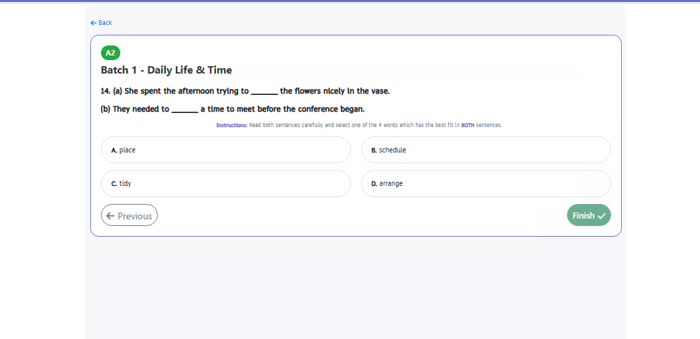
Handy tip
Cover the answers and guess first. Read both sentences and try to think of a word yourself before you look at A, B, C and D. Even if your guess isn't one of the four, your brain has already done the hard work — and that's what makes the right answer stick.