Document Conversion
Turn one of your own Word documents into Fonetic English, so you can read your own stories with the sound signs on.
Who is this for?
This tool is for anyone who already has a piece of writing on their computer — a story, a school project, a favourite page — and would like to read it in Fonetic English.
You don't need to type anything out again. You just hand the app your file, wait a moment, and it gives you back the same words with the little sound signs added.
What will you learn?
Document Conversion is a quick helper rather than a lesson. Here's what you get to do:
- Send one of your own Word documents to the app.
- Let the app add the Fonetic English sound signs to every word for you.
- Download your new copy and read it whenever you like.
The whole thing takes about four clicks, and your original file is never changed — you always get a brand-new copy.
How to use it — step by step
Step 1 — Click Document Conversion
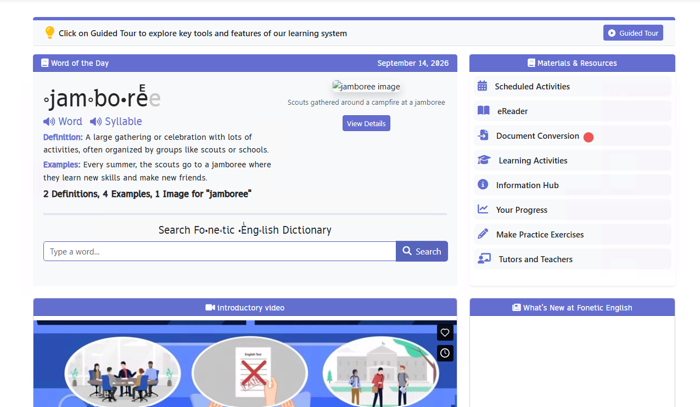
On the home screen, look at the list on the right called Materials & Resources. Find the line that says Document Conversion and click it. A small window will pop up on top of the page.
Step 2 — Click Choose File
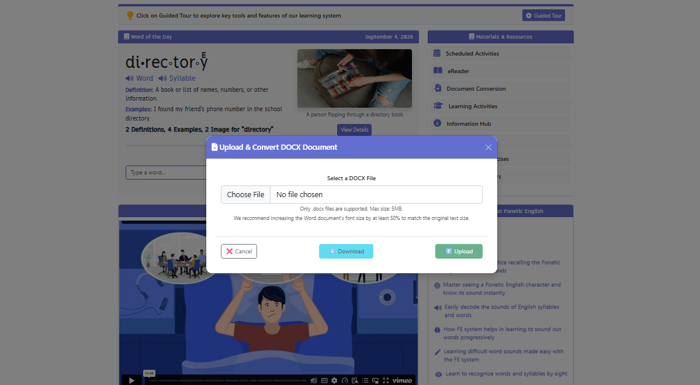
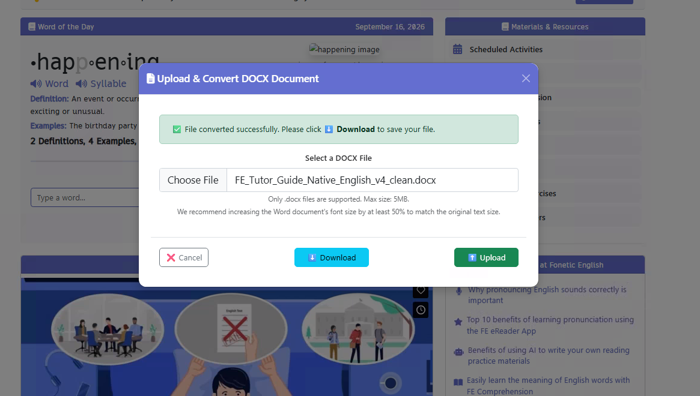
The window is called Upload & Convert DOCX Document. Click the Choose File button to go and find your document. It only takes Word files that end in .docx, and they need to be smaller than 5MB — a bit like a suitcase that can only hold so much.
Step 3 — Pick your file and click Open
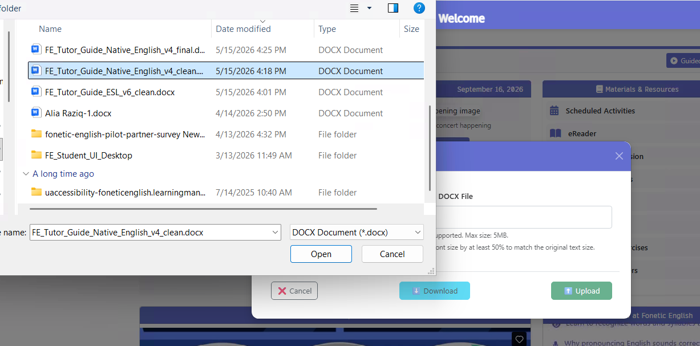
Your computer opens its own window showing your files. Click the one you want, then click the Open button. The window closes and takes you back to the app.
Step 4 — Click Upload
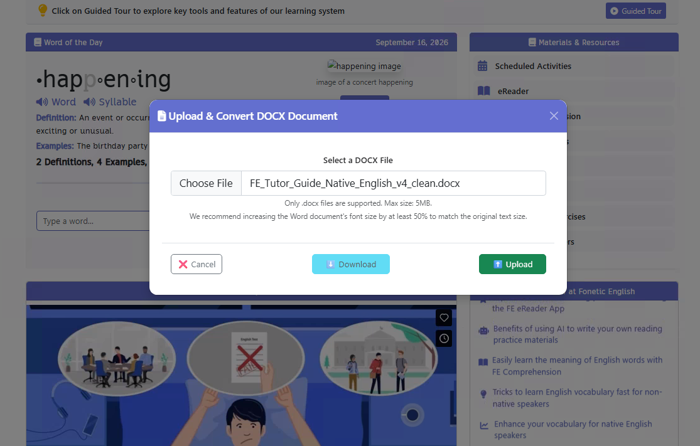
Now you'll see your file's name sitting in the box, so you can double-check you picked the right one. Click the green Upload button and the app gets to work adding the sound signs. If the name looks wrong, just click Choose File again and swap it.
Step 5 — Click Download
A green message appears saying your file converted successfully. Click the blue Download button and your new Fonetic English copy saves to your computer. Open it up and have a read — it's your own writing, with the sound signs added.
Handy tip
Make the writing bigger before you send it. The sound signs sit above and inside the letters, so they need a little room to breathe. If you make your document's text about half as big again before uploading, your converted copy will be much easier on the eyes.