Basic Vocabulary
Learn everyday English words, practise saying them out loud, hear your own voice, and test what you remember with a quick quiz.
Who is this for?
This tool is for anyone who is just starting out with English words, or who wants to feel braver about saying them out loud.
You don't need to know very much yet — these are the simple, everyday words people use all the time. If you'd like to learn new words and check that you're saying them the right way, you're in exactly the right place.
What will you learn?
Basic Vocabulary teaches you words inside short sentences, so you learn them the way people really use them. Here's what you get to do:
- Learn everyday English words one topic at a time — numbers, colours, days of the week and lots more.
- Hear each sentence said properly, then record yourself saying it and play your own voice back.
- Play a quick quiz to find out how much has stuck in your memory.
Best of all, you go at your own speed. Nothing is timed and nothing is scary — you can listen, record and try again as many times as you like.
How to use it — step by step
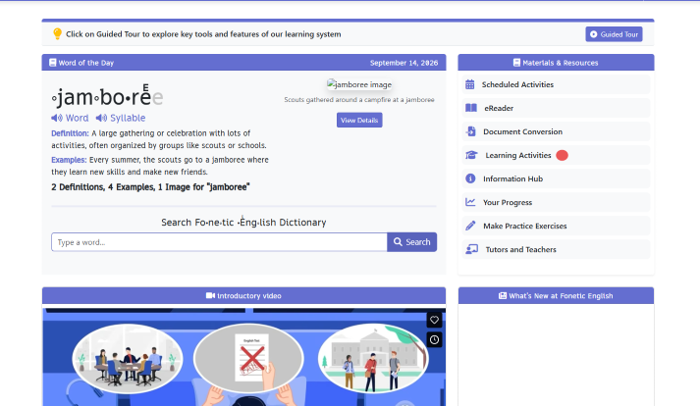
Step 1 — Find Learning Activities
When you open the app, look at the list on the right called Materials & Resources. It works like a menu in a restaurant — every line is something you can do. Click Learning Activities to see what's on offer.
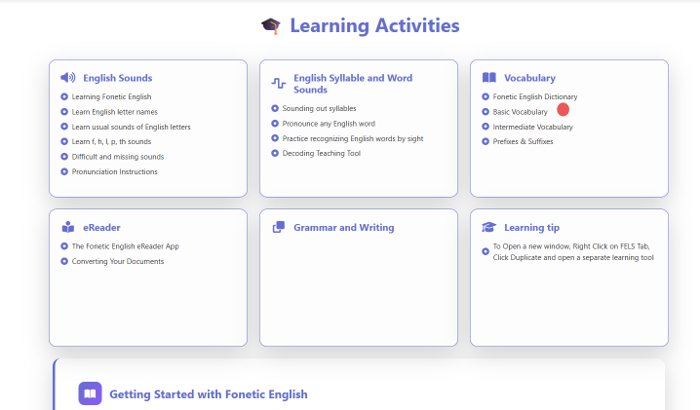
Step 2 — Click “Basic Vocabulary”
Now you'll see a page full of cards. Find the card called Vocabulary and click Basic Vocabulary underneath it. “Vocabulary” simply means all the words you know, so this is the place where you grow your collection.
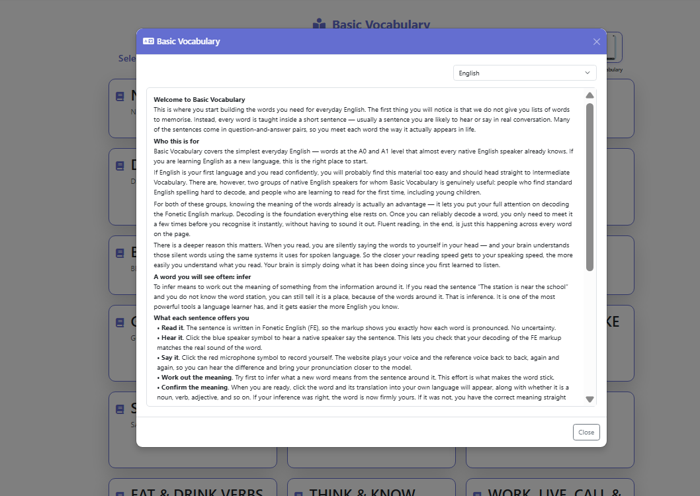
Step 3 — Read the pop-up box, then close it
A box appears in the middle of the screen with a short welcome message. It explains what you're about to do, so give it a quick read. When you're ready, click the Close button at the bottom and it will disappear.
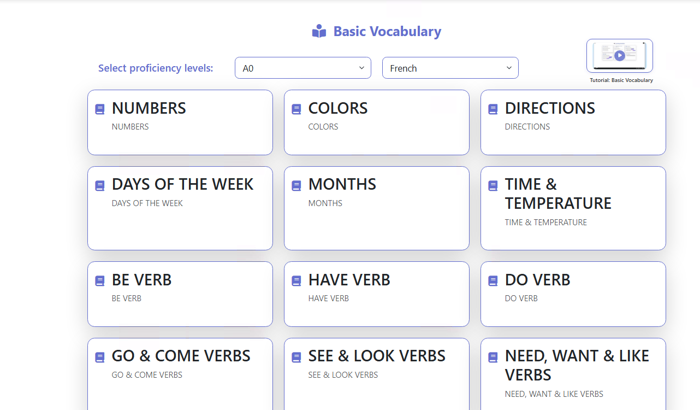
Step 4 — Choose your level, your language and a topic
At the top, pick your level — that's just how tricky you want the words to be, and A0 is the easiest, so start there if you're new. Next to it, pick your language, so any translations appear in words you already understand. Underneath you'll see topic cards like NUMBERS, COLORS and DAYS OF THE WEEK. Click whichever one you'd like to learn first.
Step 5 — Meet your lesson
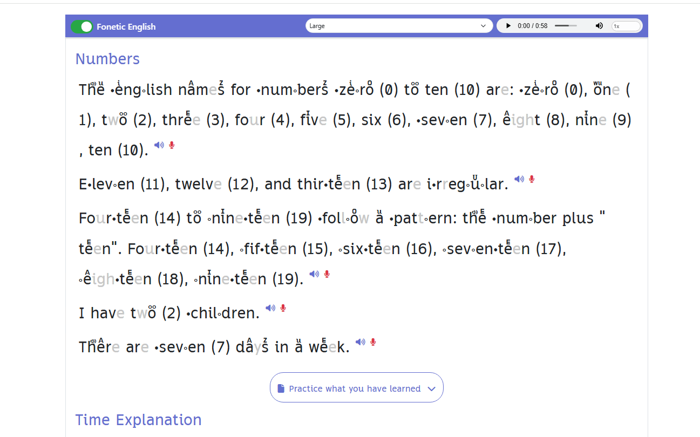
Here's your lesson! The new words are tucked inside short sentences, because that's how you'll really use them. The little dots and marks above and inside the words are there to help you say each part correctly — like tiny road signs guiding your mouth. Next to every sentence sit two small buttons: a blue speaker and a red microphone.
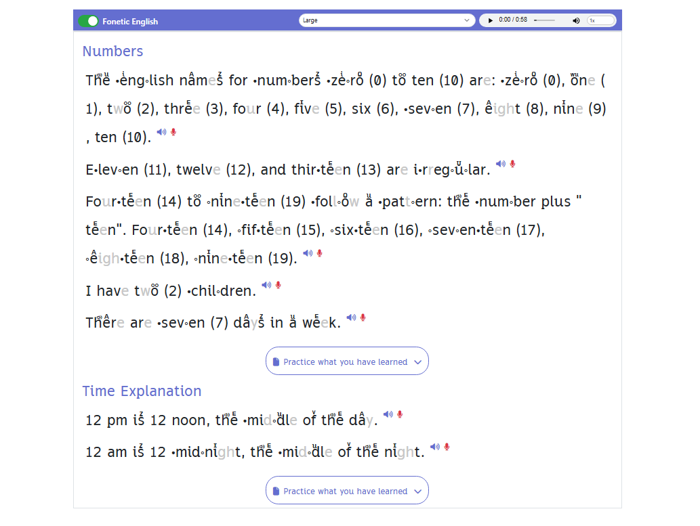
Step 6 — Press the red microphone and say it out loud
Click the blue speaker first to hear how the sentence should sound. Then click the red microphone — that's your Record button, and the app starts listening, just like a voice recorder. A tiny timer counts the seconds so you know it's working. Say the sentence in your clearest voice, then click the red square to stop. Don't be shy; nobody is listening but you.
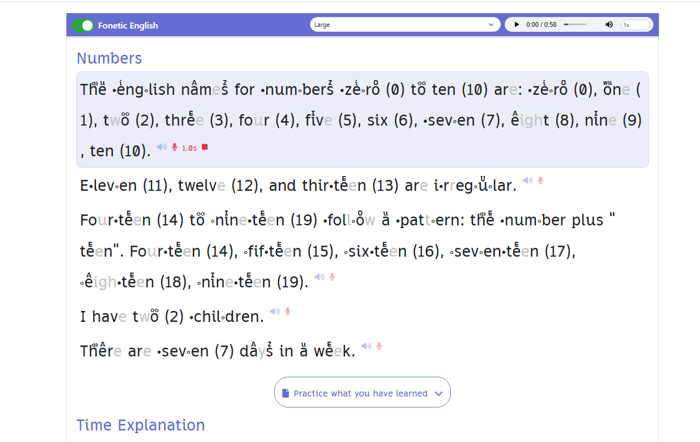
Step 7 — Press the green play arrow
Once you stop recording, a little green arrow appears beside the sentence. Click it to hear the recording you just made. It's a bit like taking a selfie, but with sound instead of a photo.
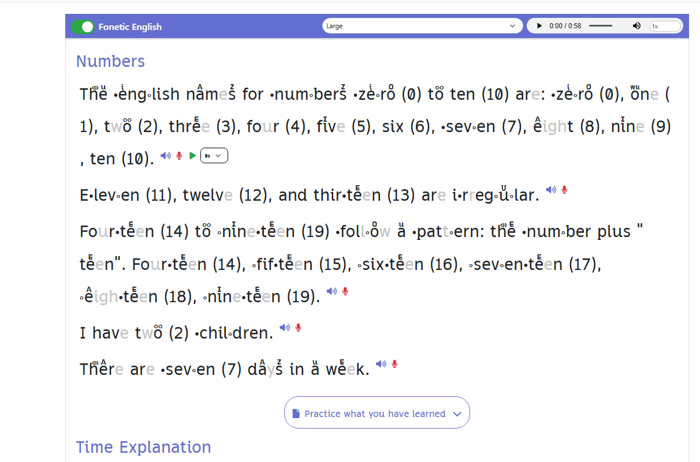
Step 8 — Listen carefully and compare
While your voice plays, the sentence lights up and the green arrow turns into a red square. Listen closely, then play the blue speaker again and see how close you got. If it sounded different, that's completely normal — just record again and have another go. Practising a sentence a few times is exactly how it starts to feel easy.
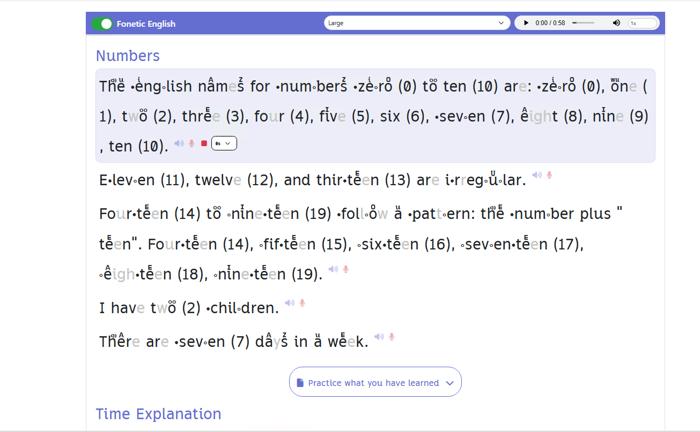
Step 9 — Click “Practice what you have learned”
When you feel happy with the sentences, it's time to test yourself with a quick game. Click the button that says Practice what you have learned, just below the lesson. It opens a set of questions about the words you've been practising.
Step 10 — Answer the question
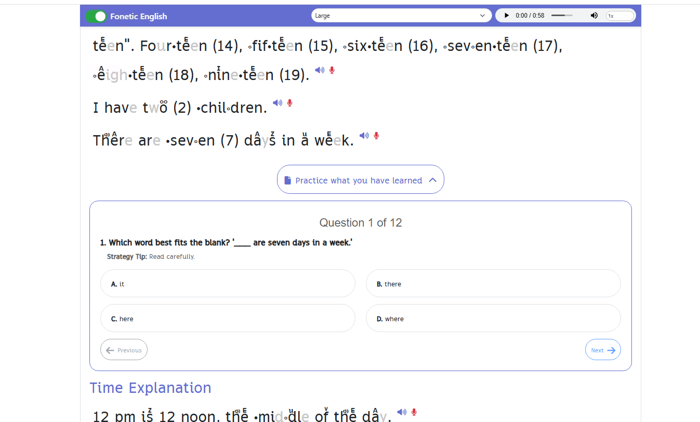
A question appears with four answers labelled A, B, C and D. Read it carefully — there's even a Strategy Tip to help you — then click the answer you think is right. At the top it says something like “Question 1 of 12”, so you always know how far along you are.
Step 11 — Picked the wrong one? No problem
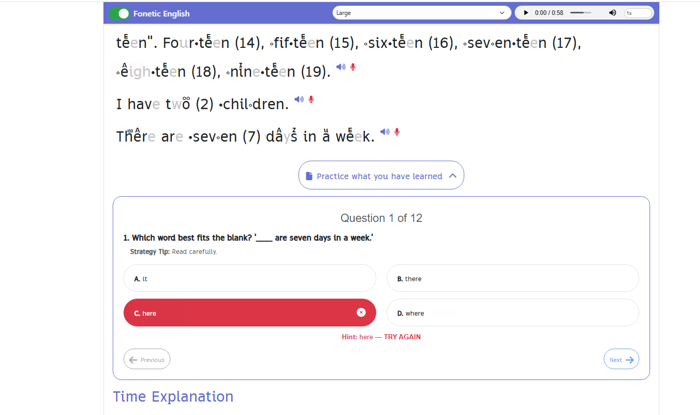
If the answer isn't right, it turns red with a little cross. Underneath, a hint pops up and invites you to TRY AGAIN, so you get another go instead of being stuck. Getting one wrong isn't a bad thing at all — it's your brain learning something new.
Step 12 — Yay, you got it right!
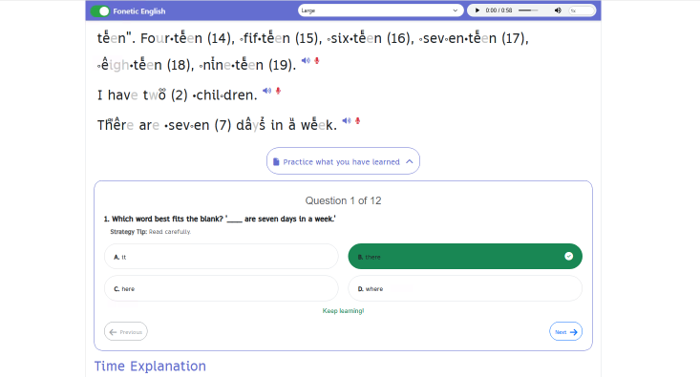
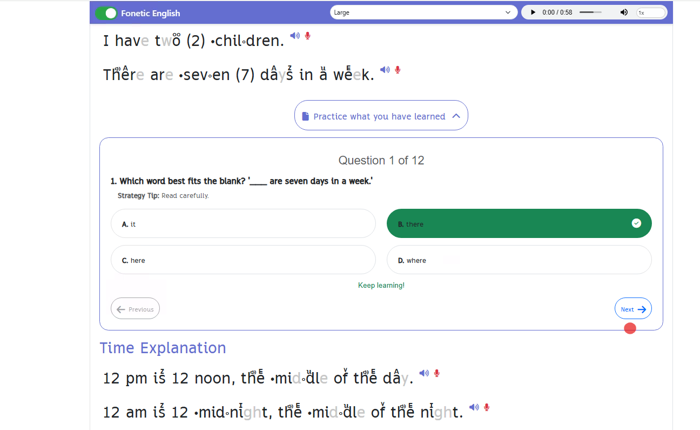
When you pick the correct answer it turns green with a tick, and a friendly “Keep learning!” appears. That means you nailed it. Give yourself a little cheer before you carry on.
Step 13 — Click Next for the next question
Look for the Next button in the bottom right corner and click it to move on. If you'd like to see an earlier question again, Previous takes you back. Keep going until you've finished all the questions — then pick a brand-new topic and start again.
Handy tip
Try saying the sentence out loud BEFORE you press the blue speaker. Then listen to the proper version and record yourself. Guessing first is like trying to answer before you turn the page — it makes your brain work a little harder, and that's exactly what helps a word stay in your head for a long time.