Difficult and Missing Sounds
Practise the English sounds your own language doesn't use, and learn to hear the difference between words that sound almost the same.
Who is this for?
This tool is for anyone whose first language doesn't have some of the sounds English uses.
If a sound doesn't exist in the language you grew up with, your ears genuinely haven't learned to hear it yet — that's not a fault, it's just how ears work. This tool trains them, using pairs of words like cat and cut that differ by one sound only.
What will you learn?
There are two halves to this tool: missing sounds and difficult pairs. Here's what you get to do:
- Learn a sound that's missing from your language, using six real words that contain it.
- Record yourself saying those words and play your voice straight back.
- Play a listening game with near-identical pairs like cat and cut, bag and bug.
Ears take a little while to retrain, so don't worry if it feels hard at first — that feeling is the sound of it working.
How to use it — step by step
Step 1 — Find Learning Activities
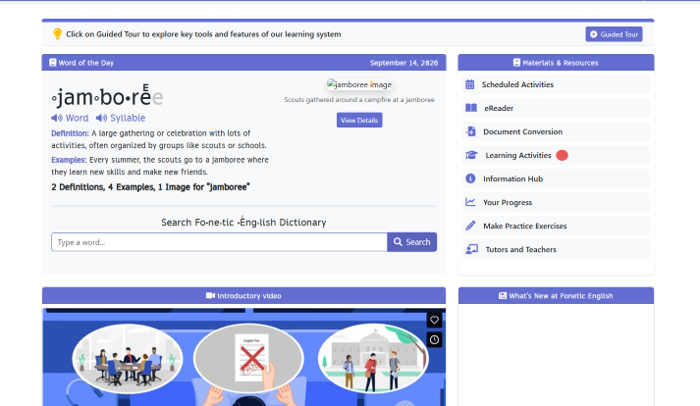
When you open the app, look at the list on the right called Materials & Resources. Every line is something you can do. Click Learning Activities to open the full list.
Step 2 — Click “Difficult and missing sounds”
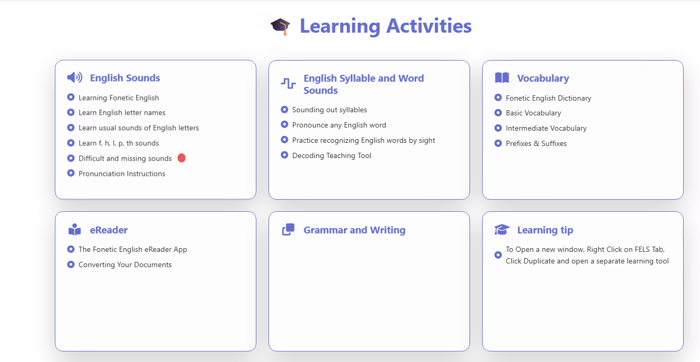
A page of cards appears. Find the card called English Sounds and click Difficult and missing sounds. That opens your first lesson.
Step 3 — Meet your first lesson
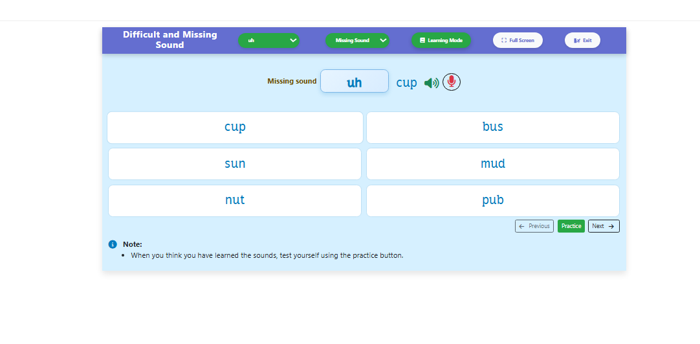
At the top you'll see the missing sound you're working on — here it's “uh” — next to a word that uses it. Below are six words that all contain that same sound. Next to the word at the top sit a blue speaker and a red microphone.
Step 4 — Press the red microphone and say the word
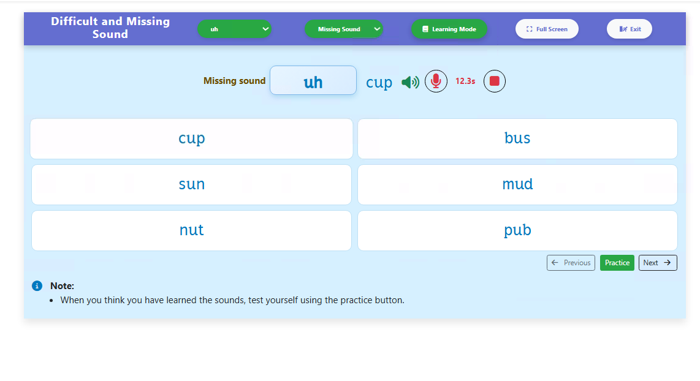
Click the blue speaker first so you know what you're aiming for. Then click the red microphone to record, and a timer starts counting so you know it's listening. Say the word clearly, then click the red square to stop.
Step 5 — Press the green play arrow
A green arrow appears once you've stopped recording. Click it to hear your own voice played back. It's a bit like a selfie, but with sound instead of a photo.
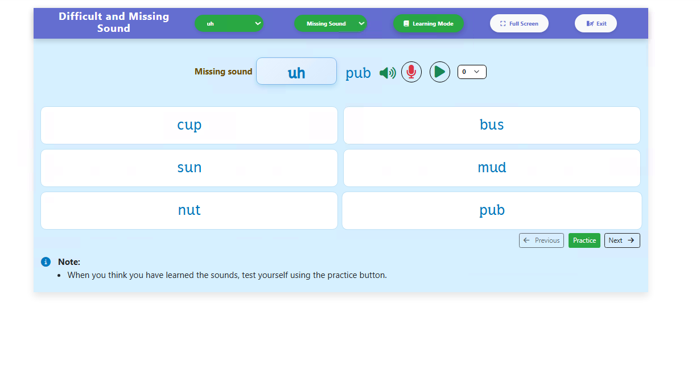
Step 6 — Listen carefully and compare
While your recording plays, the green arrow turns into a red square. Play the blue speaker again straight afterwards and listen for the difference. If they don't match yet, record again — this is exactly the sound that needs the practice.
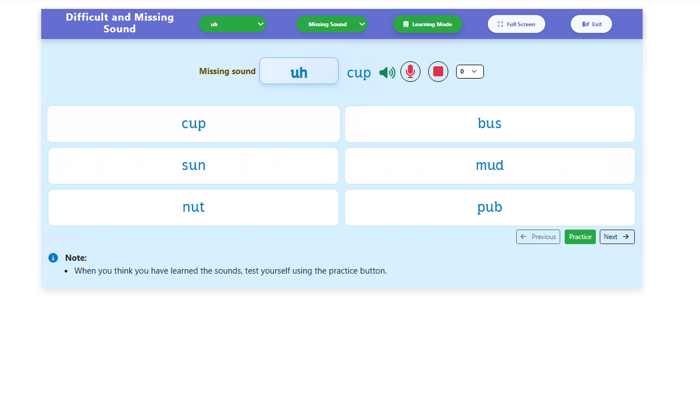
Step 7 — Click Practice
Once you've worked through the words, find the green Practice button under the cards. Click it to swap from learning into a listening game. Now you'll use your ears instead of your mouth.
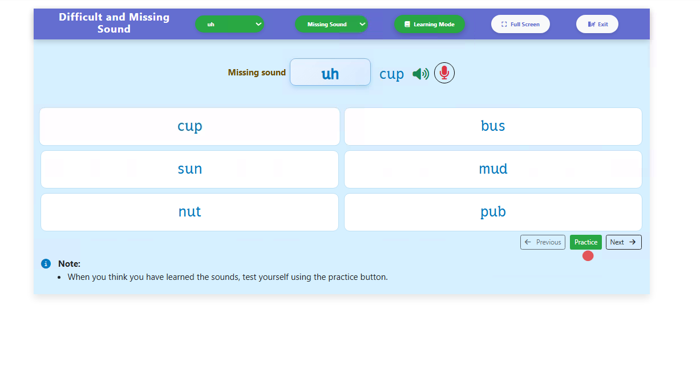
Step 8 — Click Get Started
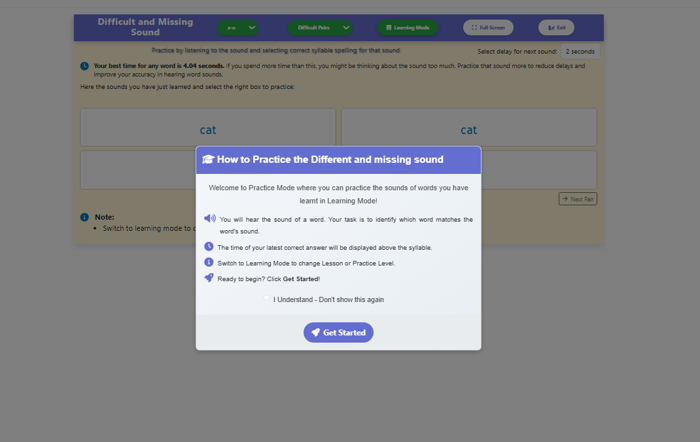
A box pops up explaining the game: you'll hear a word, and your job is to click the card that matches it. Give it a quick read, then click the blue Get Started button when you're ready.
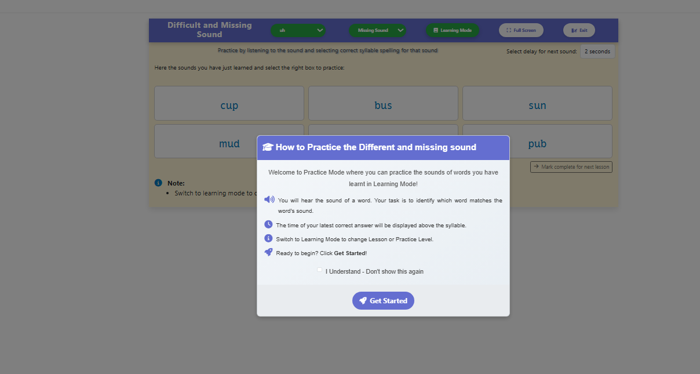
Step 9 — Picked the wrong one? No problem
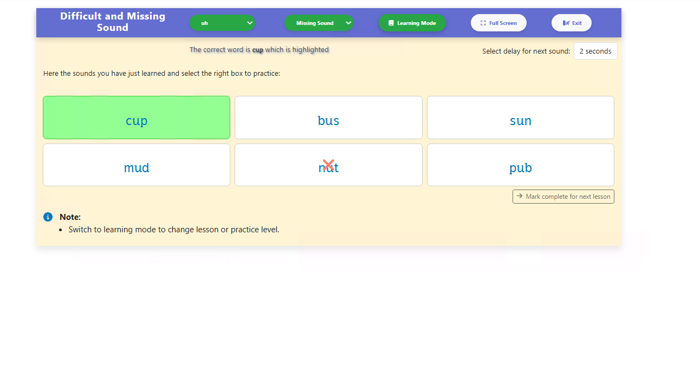
If you click the wrong word it gets a red cross, the correct one turns green, and a line at the top names it. So you always learn the right answer immediately. These words sound almost identical at first — getting them muddled is completely normal.
Step 10 — Yay, you got it right!
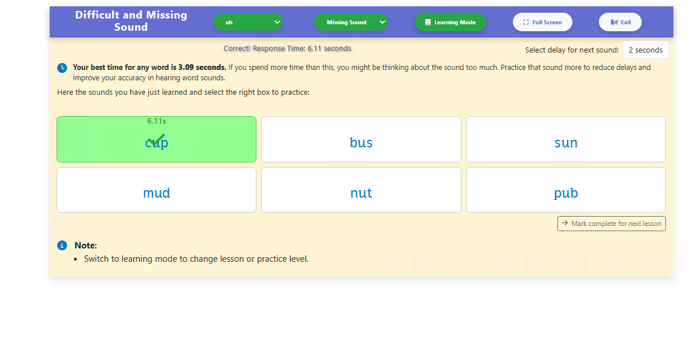
A correct card turns green and shows how long you took, and the app tells you your best time so far. Speed isn't the point, but it is a nice way to see yourself improving. Carry on to the next sound.
Step 11 — Click “Mark complete for next lesson”
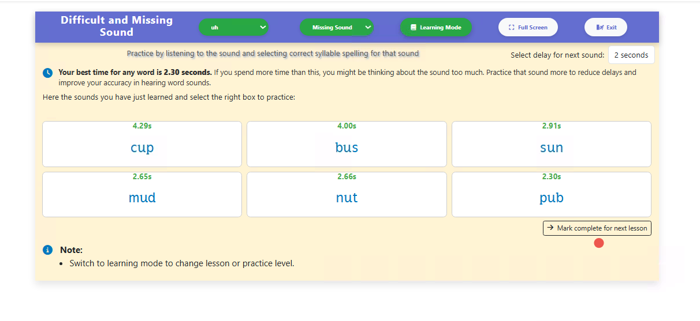
When you've been through the whole set, each card shows your time for that word. Click Mark complete for next lesson in the bottom right corner. That tells the app you're ready for something new.
Step 12 — Switch the dropdown to Difficult Pairs
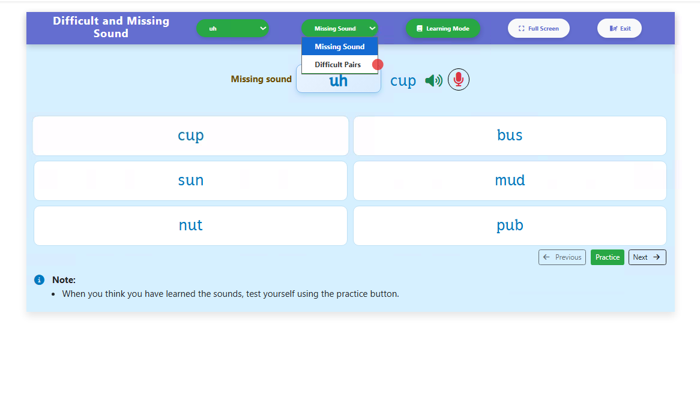
At the top of the page there's a dropdown that currently says Missing Sound. Click it and choose Difficult Pairs instead. This is the half of the tool that trains your ears on words that differ by just one sound.
Step 13 — Meet the pairs
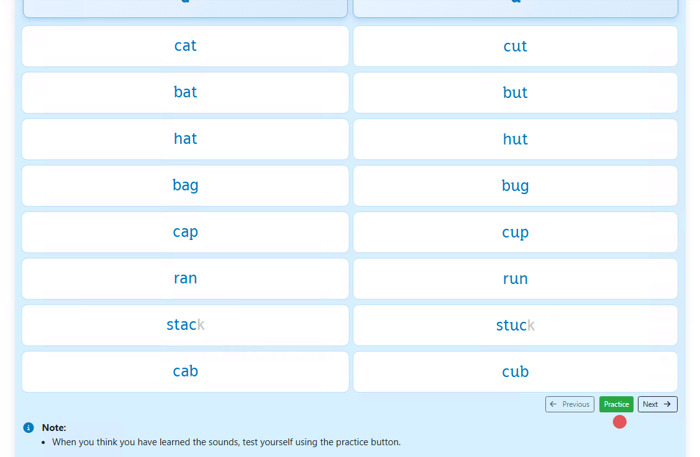
Now you'll see two columns side by side, one for each sound, with matching words lined up: cat and cut, bag and bug, ran and run. Reading down the two columns shows you exactly what changes. Above them is the same blue speaker and red microphone.
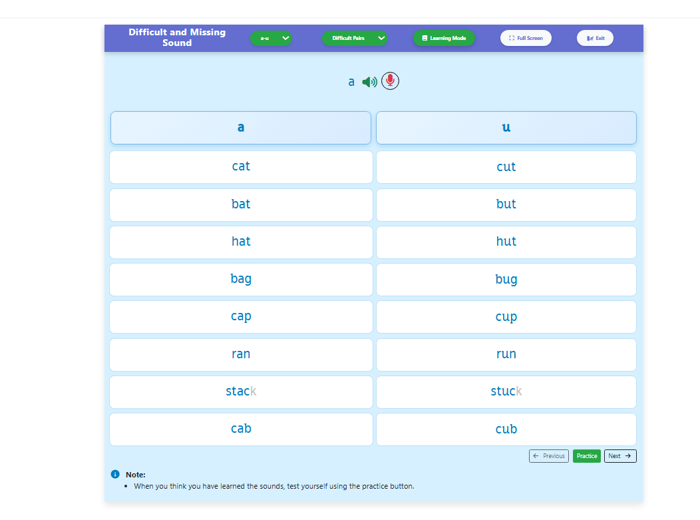
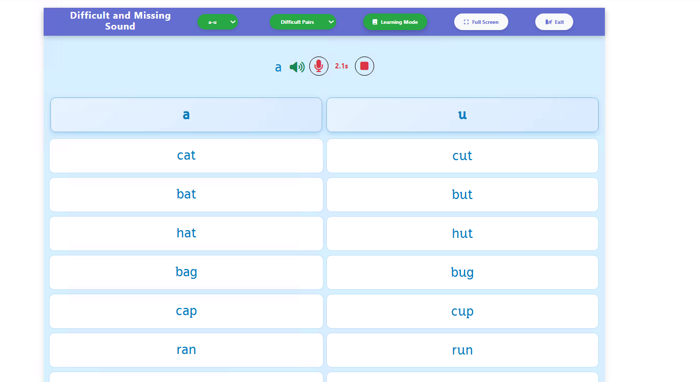
Step 14 — Press record and say both words
Click the red microphone and the timer starts counting. Say the pair out loud, one after the other, so you can hear whether you're actually making two different sounds. Click the red square when you're done.
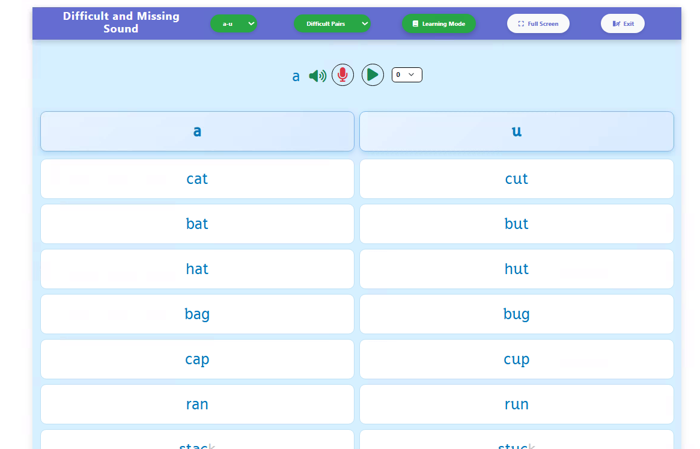
Step 15 — Press the green play arrow
The green arrow appears once you've stopped. Click it to hear your two words played back to you. If they sound the same to you, that's really useful to know — it tells you exactly what to work on.
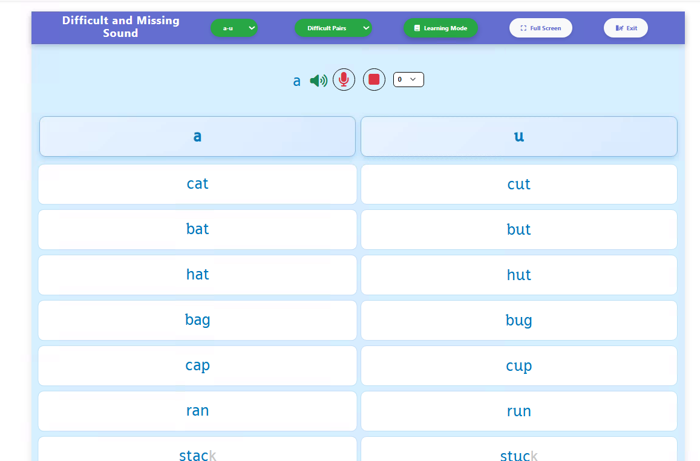
Step 16 — Listen carefully and compare
While it plays, the green arrow turns into a red square. Play the proper version again straight afterwards and listen for the difference. Try again, exaggerating the difference a bit more than feels natural.
Step 17 — Click Practice
When you've had a good go at saying the pairs, click the green Practice button. This swaps you into the listening game for pairs. It's the real test of whether your ears can tell them apart.
Step 18 — Click Get Started
The same explaining box pops up: you'll hear a word and click the one that matches. Read it, then click Get Started. Remember you can always switch back to Learning Mode if you want more practice first.
Step 19 — The pairs appear
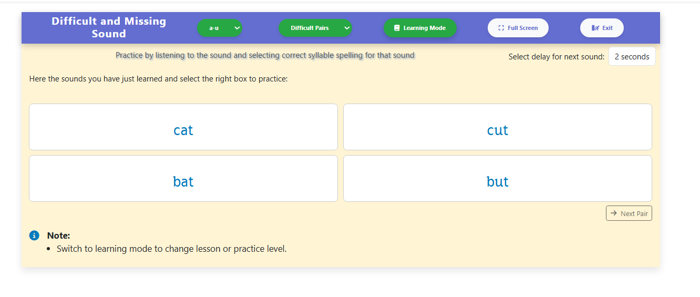
You'll see one pair at a time, which keeps things nice and focused. Listen to the word, then click the one you think you heard. There's a Next Pair button when you'd like to move on.
Step 20 — Picked the wrong one? No problem
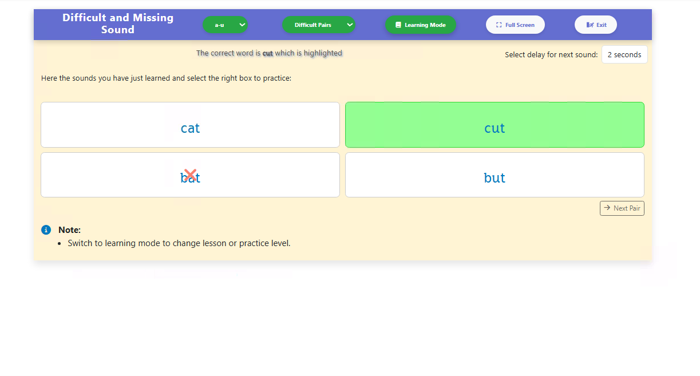
Your card gets a red cross, the right one turns green, and the app names the correct word at the top. Say both out loud before you carry on, so your mouth and ears learn together. This is the hardest part of English for many people — you're in good company.
Step 21 — Yay, you got it right!
The correct card turns green and the app says “Correct!” with your response time. That means your ears just did something they couldn't do before. Well done.
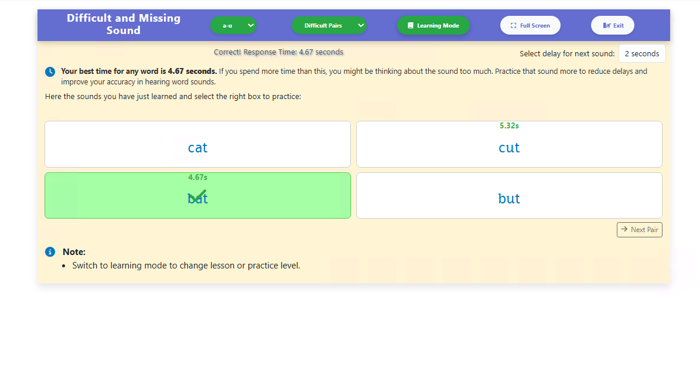
Step 22 — Click Next Pair
Once you've worked through a pair, click Next Pair in the bottom right corner. A new pair of similar-sounding words appears. Each card keeps your best time, so you can see which ones still slow you down.
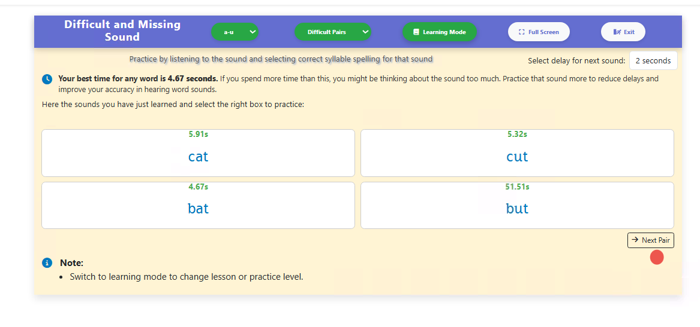
Step 23 — Click “Done! Back to Learning”
When you reach the last pair, a green Done! Back to Learning button appears. Click it to come out of the game and return to the lesson. Nothing is lost — your times are all kept.
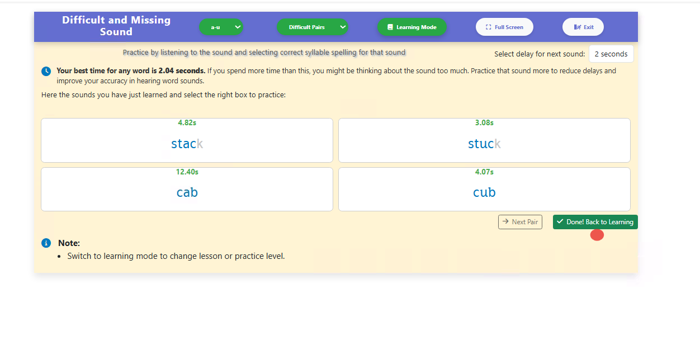
Step 24 — Click Exit to see your report
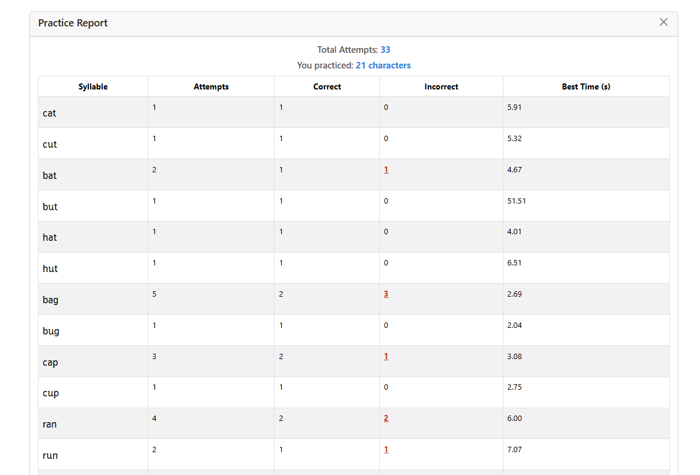
Ready to stop for today? Click the Exit button in the top right corner. This doesn't throw anything away — it opens a report of how you did.
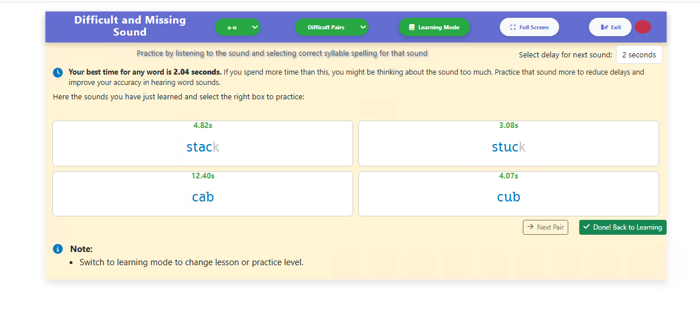
Step 25 — Look at your Practice Report
The report lists every word you tried, how many goes you had, how many you got right, and your best time. It's a quick picture of which sounds are already comfortable and which ones still need attention. Only you ever see it.
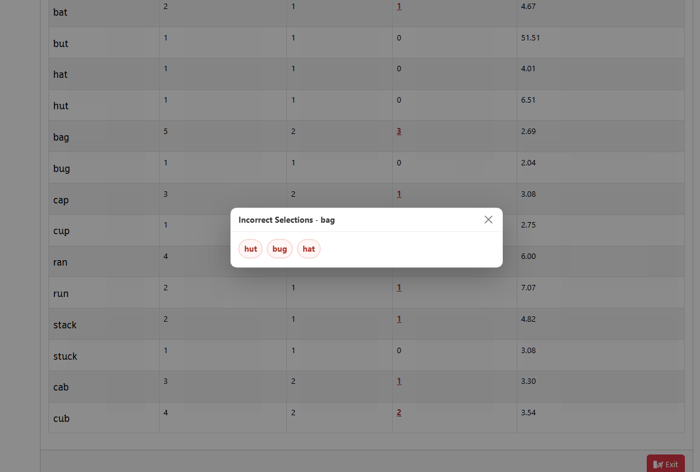
Step 26 — Click a red number to see the details
Any red number in the Incorrect column can be clicked. Click one and a little box shows the words you picked by mistake instead. Those are the ones your ears are still blending together, and they're the perfect thing to practise tomorrow.
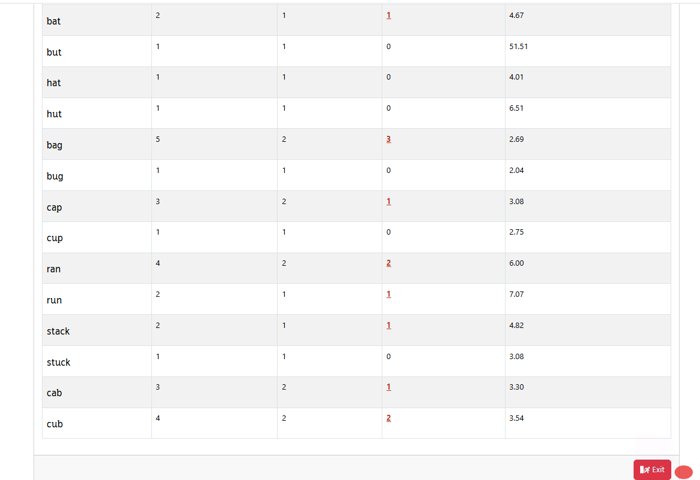
Step 27 — Click Exit to leave the report
When you've finished looking, click the red Exit button at the bottom of the report. That closes it and you're all done for the session. Come back tomorrow and the same sounds will be a little bit easier.
Handy tip
Say the pair out loud back to back, twice. Cat-cut, cat-cut. Hearing the two right next to each other teaches your ears much faster than practising either one alone, because the difference is the thing you're actually learning — not the word.